

Are you looking for a link to the portal? Click here for the NetClient CS Portal
Registering for NetClient CS Portal:
How do I register for a NetClient CS Portal?
I did not receive the Brown Plus NetClient CS registration email. What should I do?
Using the NetClient CS Portal:
How do I access and use my Tax Organizer?
How do I upload documents through File Exchange?
How do I update my password or authentication settings?
General Troubleshooting and Login Issues:
I am unable to access the NetClient Portal due to login problems, authentication issues or glitches.
I have a new phone number, and my old one is my 2FA. How do I access my NetClient Portal?
How do I log into NetClient CS if it says my password is incorrect?
Registering for the NetClient CS Portal
How do I register for a NetClient CS Portal?
If you have not already received a NetClient CS registration email from Brown Plus, reach out to your Brown Plus advisor and then follow the steps below.
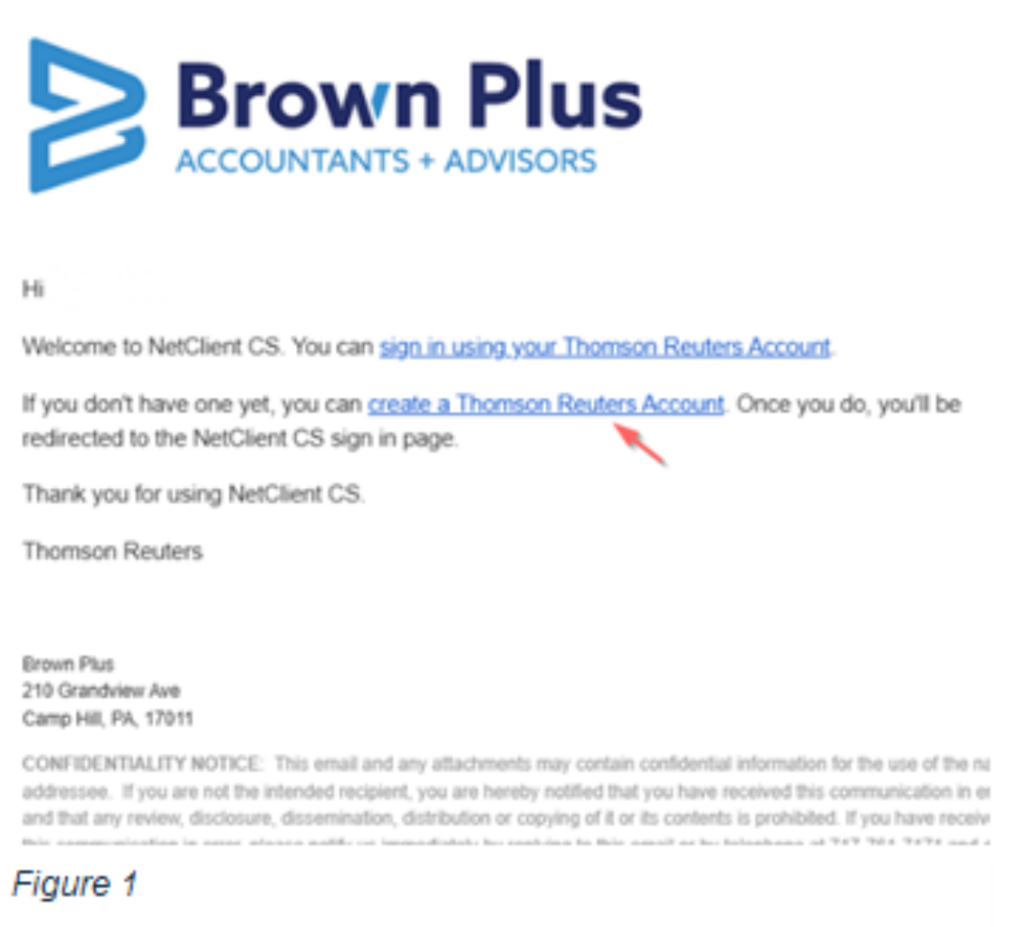
- Locate your Brown Plus NetClient CS Portal registration email. (Figure 1)
- Click on “create a Thomson Reuters Account” in the body of the email.
- Follow the instructions to set your password and security question.
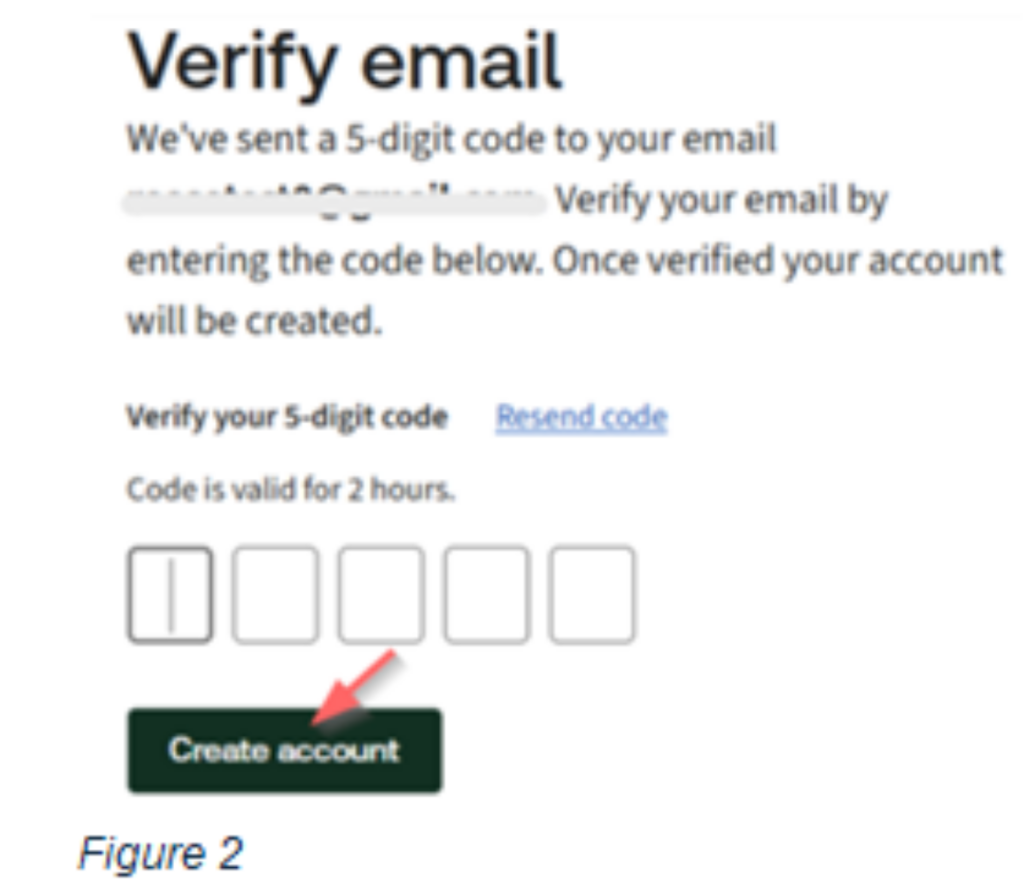
- Once you submit your password and security question, a verification code will be sent to your email. Enter the code and select “Create Account.” (Figure 2)
- After successfully entering the verification code, you will be prompted to login using the password you just created.
- Select an authentication method from the available options. If you already use one of the authentication apps listed, you may select it; otherwise, select the “Phone” option. (Figure 3)
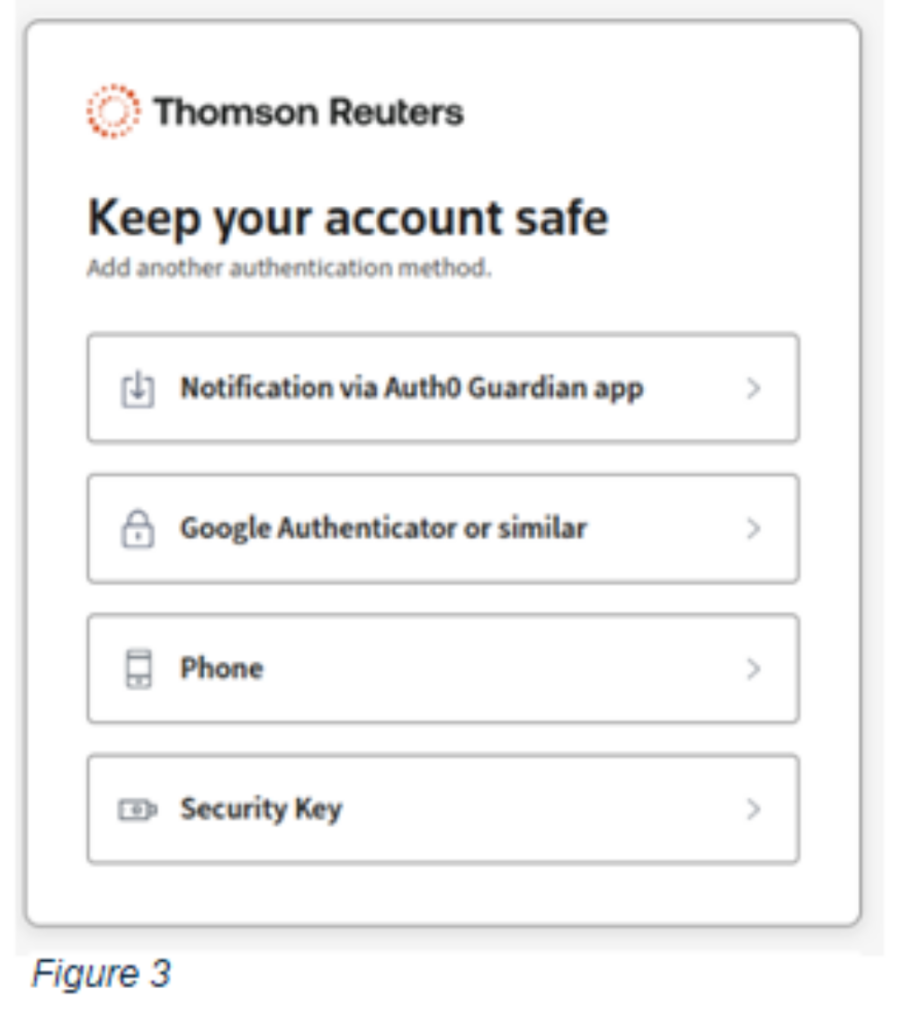
- If using an authenticator app, scan the QR code and enter the one-time code. If using “Phone,” enter your 10-digit number, choose Text message or Voice call, then press “Continue.”
- Once received, enter the 6-digit code and press “Continue.”
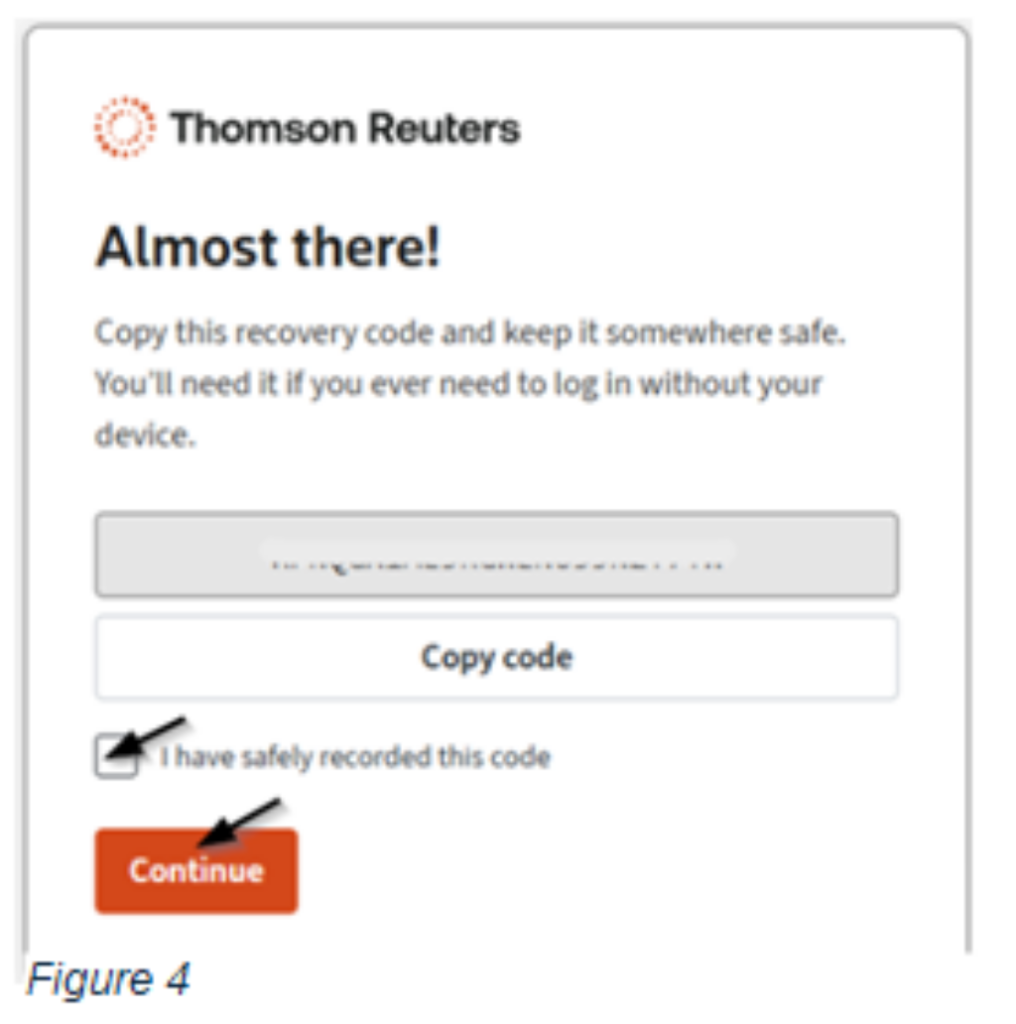
- After you finish setting up your authentication method, you will be prompted to save your recovery code. Store this code in a secure location such as a password manager or a locked drawer/safe. After saving the code and checking the box, click “Continue,” and you will be taken to your Brown Plus Portal. (Figure 4)
I did not receive the Brown Plus NetClient CS registration email. What should I do?
The email comes from no-reply@thomsonreuters.com. Please make sure the email is not blocked from your system. Check your junk or spam folders in your email to ensure that the email did not go into spam.
If you cannot find the email, please contact helpdesk@brownplus.com and our IT Team will assist you.
Using the NetClient CS Portal
How do I access my Tax Organizer?
We will be sending your tax organizer to you through the Portal. Once your tax organizer has been uploaded, you will get a notification email informing you that your Organizer has been uploaded to the Portal and is available. To access your organizer, follow the directions in the email by clicking the link or connect directly by typing https://secure.netlinksolution.com/ into your web browser.
Once you are inside the Portal click on your documents folder on the left side of the screen (the folder icon with your name or company name). Depending on how your tax organizer is configured you might have documents that require your attention and response. These documents are indicated by a new document indicator. They will be in your “Tax Returns” folder, the return year end date, labeled as “action items”.
The first item is the Cover Letter. This is a set of instructions to complete your tax organizer. The second item is the Web Questionnaire. Completing this questionnaire ensures we have all the information we need to prepare your tax return. Review the folders on the left side to view the information from the prior year. Update any outdated items and add the current year’s information. You can include additional files with your tax organizer by clicking “Uploaded Tax Documents” and selecting “Upload”.
How do I upload documents through File Exchange?
To upload files that you need to share with your Tax Advisor, you will log into the Portal and send files through the File Exchange link on the Portal. This will facilitate a secure transfer of files.
- Open the “Upload to Brown Plus” folder.
- Select the “Upload” button from the icons available.
- Click “Add files” in the window that pops up OR drag files to the window.
- Click “Start upload.”
Please note:
- You can upload a single file or multiple files.
- The size of each file cannot exceed 2GB.
- If you upload a file with the same name as a file in File Exchange, it will overwrite the original file.
How do I update my password or authentication settings?
- To update your password or authentication settings when logged into the Portal, click on your name in the top right corner.
- Click “Manage your Thomson Reuters Account.”
- Click “Security” from the menu on the left.
- From there, you can either click “Change password” to change your password or scroll down to Two-factor authentication and change your selection.
General Troubleshooting and Login Issues
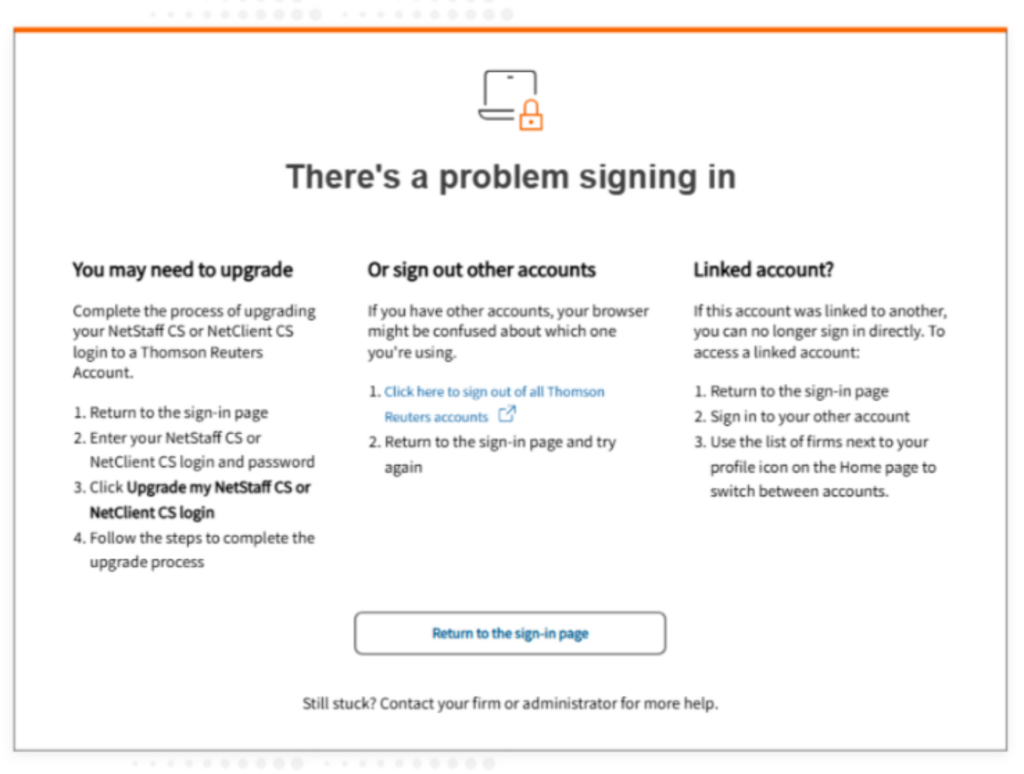
I know my password and email address are correct, but I am receiving a problem signing in error message like the one below. What should I do?
Follow the suggestions provided by Thomson Reuters on the screen below. If you are still getting the error, send an email to helpdesk@brownplus.com, and our IT Team will assist you.
I am unable to access the NetClient Portal due to login problems, authentication issues or glitches.
Try using a different web browser, such as Google Chrome, Mozilla Firefox or Microsoft Edge. If you are having the same issues, clear your browser’s cookies. Below are instructions for these browsers:
GOOGLE CHROME
- Open Chrome.
- Click the three dots in the top-right corner of the browser.
- Hover over “More tools” and click “Clear browsing data.”
- In the window that opens, go to the “Advanced” tab.
- Check boxes for history, downloads, cookies, and cache.
- Click “Clear data.”
- Close Chrome and open it again.
MOZILLA FIREFOX
- Open Firefox and click the three lines in the top-right corner.
- Choose “History” and then “Clear Recent History.”
- Pick a time range from the dropdown menu.
- Check boxes for history, forms, cookies, and cache.
- Click “OK.”
- Close Firefox and reopen it.
MICROSOFT EDGE
- Open Edge and click the three dots in the top-right corner.
- Go to “Settings,” then “Privacy, search, and services.”
- Scroll to “Clear browsing data.”
- Click “Choose what to clear.”
- Check boxes for history, downloads, cookies, and cache.
- Click “Clear now.”
- Close Edge and open it again.
I have a new phone number, and my old one is my 2FA. How do I access my NetClient Portal?
- Put in your email and password on the login screen
- Select “try another method”
- Select recovery code
- Put in the recovery code that was saved during your account setup
I am getting a “password incorrect” message. How can I log into NetClient CS?
- At the NetClient CS login screen, enter your email address and click “Sign In.”
- On the next screen to enter your password, click on the “Reset your password” link.
- Enter your email address and click “Send Link.”
- You will receive an email to reset your password.